
 ABOUT THE PSION SIBO EMULATOR
|
|
De PC 3a The PC 3a is a PC with installed a Psion 3a emulator. You can do everything on the PC 3a in the same way as on a real Psion. No complicated tricks for translating. Everything just up and down without conversion. Readme.txt for S3AEMUL.EXE Contents zipfile Licence statement Intended purpose Installation of the software Some tips If its going wrong... Operation Remote Link with the emulator Problems with memory >64Mb and DOS version <7.0 Problems with memory >64Mb and DOS version >7.0 Large disks, many partitions All emulators using the same "Psion" drives The emulator in an emulator And than this... Back to the index Introduction The Psion Series 3a - PC Emulator needs a PC with minimum a 80386 processor and with minimum 4MB memory. You need a hard disk with at least 2Mb free space and a VGA monitor with a VGA video card. So I can't install it on my XT, sad, but it runs very well on my Pentium and it also runs on a 80386 as said. The emulator will work only in DOS and not in Windows, OS/2 or Desqview. Yehyeh...in DOS, okay. Not in Windows not okay. It doesn't have a Windows outfit, but it can be launched from a DOS-box. This is not a healthy situation because Windows will become unpredictable. If you will have trouble depends on configuration, active programs, memory and how you did exit the emulator. It will run on a Windows 95 setup but Windows 98(or better) doesn't do it. It is still possible to launch the emulator, exit does have the unavoidable reboot, but Windows did had already a patent on that, so what? Not in OS/2, right. Desqview, don't have that program, but as far as I know Desqview is some kind of shell in DOS, so with some tricks it might be possible. Not mentioned, Windows 3.1 or 3.11. Also a shell in DOS, so with some tricks it will do. The reason that you need minimum a 80386 processor is because Psion puts the processor in protected mode and divide 512Kb memory in 64Kb parts. Dedicated in a Psion this is done with the 8086 processor, but in a PC this isn't easy (anymore). You need lots of memory and computer power for translating all address lines from a PC and the Psion. The video memory in the Psion is situated on an other spot in the memory compared to the PC, and what to think about your keyboard, ports, virtual drives for the ssd-slots. Therefore its understandable and pity that it doesn't run on a XT computer with an 8086 processor. Its said that the Psion is very powerful and you need a 80386 to do the same in a PC. This is not entirely true, the use of an 80386 was done because it was the easiest way for emulating. The performance of the Psion is remarkable. My PC with a 386 at 40Mhz was running around the Psion Series 3a, this can be seen when you run a big sheet or a database with more than thousand! records, but with the Psion Series 3mx its the other way around. Recently I wrote a program which confirms this situation. A Psion Series 3mx in highspeed mode overtakes a PC with a 386 40Mhz processor! Also a Psion Series 3a overtakes a PC with a 386 8Mhz processor! Below some information about tested systems. The program measures how much time it will take to fill a crowbar from 0% to 100%.
This story was written some years ago, today with all the Pentium power you have to look for an XT like a needle in a haystack and even a 80386 or 80486 will become difficult. Yet I tell you this because there are some users unaware about the simple solutions with the outdated computers. May be you need it because Psion did stop production of the known Psions and may be you have one which is whimpy. From my helpdesk experiences I can tell you that even the smallest Psion with 256Kb memory does contain much more information than you ever could store in a agenda, filofax or whatever you call those paper boxes. And we didn't mentioned special programs like a plain sheet, the possibilities with agenda, not to mention all other software. I do have some remarks from my point of view. The files are in English and that's a small problem for some users (in Holland). A Dutch version is available, see the flag in the upperleft corner. I do have some tips which aren't in the original. This has some advantages. The text is not 1 on 1 and therefore original and you know how to use the emulator without problems. The emulators for other languages and other machines don't react or work identical. On the page of each emulator you will find some remarks about it if any. This page is somehow a red line in the story! 
Readme.txt for S3AEMUL.EXE This file tells you how to use the program S3AEMUL.EXE on a suitable PC. The program emulate the Psion's S3a software. This is explained in this story, so repeating in a short form has no use. Note that the story is about the Dutch Psion Series 3a emulator. There are other machines and languages, see above or the index.
Contents zipfile
Complementary files found on the disk from Psion Nederland:
Licence statement Wow! There is as much as that you are respected to read the conditions for using the software and that you have to agree to it. Unfortunately all in English (Dutch users). The licence is quite simple. You may use the emulator on a royalty free basis. You may also copy and distribute copies of S3AEMUL in the same form as you received it. There is also a note with which files are found in S3AEMUL and with this note there is some trouble. The free disk and zip files offered by Psion Netherlands contains more files than in the licence and this is the form in which I received it! Because I do have a disk and you probably don't, the downloadable files are conform the original licence. Reading on we see that British laws apply, that it stays property of Psion PLC and that the licensee is only allowed to do what is written in this document. This is using, asking no money for it and free distribution in the form as laid down in the licence. You may not reverse engineer the software. Than a extensive chapter about warranty and they start that it is free. It is not unreasonable and it is what they say, free! This is the text from the licence in big lines.
Intended purpose This is as much as "why" this software package. It is nothing more than a tool for software developers. That you have to treat it with the caution and that you must be sure to have backups of any data on your PC because anything can and will happen. That said, it has been the experience of developers who have already used S3AEMUL that no significant data loss has resulted from the use of this tool. But it is also true that it is totally unclear why the systems stops very sudden. So, as soon as you put in something clever or brilliant in the machine you do better for storing it directly. And I do speak from own experience.... You can also read that it won't come to that and that it exceed the expectations, this is also true, in most cases the emulator just do what you want. And of course some text about no warranties or guarantees and that this is particular true for try running from inside Windows, OS/2 or Windows NT..... I have already said something about it.
Installation of the software As a start I use the zipfile as pointed out in the licence. Such zipfiles can be downloaded from the index (these are links to other sites because I don't have room for the zips). We are on a English page, so it will be the English distribution file. Make a directory on your hard disk with any name you like. I called the directory 3AEMULUK, but S3EMUL or so will do fine. For ease of use the drive is drive C:, but you can use other, later drive letters. A lower drive letter, ie A: and B:, is reserved for floppy stations and moreover not accessable in due course. In DOS you can make a directory as follows; MD~C:\3AEMULUK[ENTER]The [ENTER] means that you have to push the ENTER-key and you confirm the action. The sign "~" means a space. Copy all the files from the zipfile to this directory or copy the zipfile to this directory and unzip it there. No unzipper?, here you can download the DOS distribution. PKWare stopped distribution of PKzip and PKunzip for DOS. After unzipping the file you must have the next files; S3AEMUL.EXE EPOC.DLL EPOC.RMI HHSERVER.PAR RTM.EXE DPMI16BI.OVL README.TXT LICENCE.TXTRename S3aEMUL.EXE if you like, but don't rename any other file. And here it is going wrong with Psion. It is recommended to copy the files SUBST.EXE and MODE.COM to this directory as well. I will explain why in a short while. These files can be found in the directory C:\DOS, see example below. The size and dates can differ and are dependent on supplier and version of DOS. You need minimal DOS 3.3. Please don't use DOS 4.x, it is unstable. Rather do use DOS 5.0, DOS 6.0, DOS 6.22 or DOS 7.10. MODE COM 23.841 11-06-94 17:44 SUBST EXE 18.606 11-06-94 17:44Before we can do anything with SUBST.EXE we need to make more subdirectories for emulating the SSD slots and internal drive. Go to your directory, ie C:\3AEMULUK, and make the following subdirectories; MD~C:\3AEMULUK\A[ENTER] MD~C:\3AEMULUK\B[ENTER] MD~C:\3AEMULUK\M[ENTER][ENTER] means you have to push the enter-key. The sign "~" means a space. Now that's done we are going to make some adjustments in the directory C:\3AEMULUK. Launching the emulator isn't simple entering S3AEMUL and its best to use a batchfile for it. I called the batchfile START.BAT. With an ASCII editor or a text editor which can safe the file in ASCII we do make a new file START.BAT. I still use PC-Write for that purpose and I translated the program partial to Dutch. In some versions of DOS you could enter; EDIT~START.BAT[ENTER][ENTER] means you have to push the enter-key. The sign "~" means a space. In the next example you see lines starting with "REM". You may skip them, they don't have any influence on the operation of the file and are there alone for comment. The sign "~" means a space. The contents of this new batch file is as follows; REM See to it that you always start from drive C: C: REM See to it that you always work from the root CD\ REM See to it that you switch to the right directory, REM directory may have another name. CD\3AEMULUK REM See to it that all necessary "Psion" drives are installed SUBST~A:~C:\3AEMULUK\A SUBST~B:~C:\3AEMULUK\B SUBST~M:~C:\3AEMULUK\M REM Launch the emulator S3AEMUL REM See to it that the "Psion" drives are erased SUBST~A:~/d SUBST~B:~/d SUBST~M:~/dSafe this file as START.BAT in plain ASCII or DOS text. You can check this in DOS by typing TYPE~START.BAT[ENTER].The sign "~" means a space. If you see none readable characters or you hear strange beeps than you know you didn't safe the file as ASCII file or saved it in "DOS text". Try again. You cannot do any harm with the command TYPE, so this is a very safe test! You can also read why physical drives A: and B: are not accessable after launching the batchfile! The file with the name CONFIG.SYS needs to be examined. This file is a file like START.BAT and also a file in ASCII text. In some way it does the same as START.BAT but than on system level. As soon as you launch DOS this file CONFIG.SYS will be read by the system and the commands in the file are executed. Again with TYPE you can read CONFIG.SYS. If the file CONFIG.SYS is a file with lots of lines than you won't see a thing because it rushes over the screen. The next command will do a better job. TYPE~CONFIG.SYS~¦~MORE.The sign "~" means a space. The character "¦" is called a pipesign. It is possible that DOS doesn't understand this character, take the character "|" in its place. This character sees to it that TYPE as well as MORE can give each other commands at the same time. The file CONFIG.SYS resides in the root of your harddrive, normally this is drive C:. You have to enter a path if you get nasty messages that the file is wrong or that the file can't be found. The first line can be like this; TYPE~CONFIG.SYS~¦~C:\DOS\MOREThe sign "~" means a space. The following lines must be in your CONFIG.SYS file, but not necessarily in the same order. DEVICE=C:\DOS\ANSI.SYS BUFFERS=40,0 FILES=40 LASTDRIVE=Z BREAK=ON SHELL=C:\DOS\COMMAND.COM~C:\DOS\~/P~/E:2048The line with DEVICE can also be DEVICEHIGH. The command is identical, with this difference that DEVICEHIGH will place the command in high memory. For operation it doesn't matter. Buffers can have a different value, I won't advice smaller for the todays systems and bigger slows it down by little. The command FILES is about right. Personally I wouldn't change the command LASTDRIVE, the drive letter must be minimal "M" because this letter is used in START.BAT and emulate the internal drive of the emulator. The command BREAK=ON is always handy. With [Control]+[BREAK] you can end a jammed program, quarantees to the end of this line so to speak. In short, sometimes its a success and sometimes it won't work. This key combination doesn't work in the same way in the emulator, but it will work during launching with START.BAT. In case the commands in your START.BAT can't be understood by DOS. The line with SHELL looks difficult, but it prevents some not clearly understood messages from DOS. The line sees to it that COMMAND.COM represents the system no matter what and therefore can understand your commands. The addition /E:2048 sees to it that you don't run out of environment memory. With this command I never got complains and I make use of big prompts. A prompt is as much as C:> at the bottom of your screen, sometimes followed with a blinking small block, called the cursor. Sorry if you started in Windows and not in DOS. If your file CONFIG.SYS doesn't have one of the lines you have to edit your CONFIG.SYS. Again, take Edit etc. Be sure that the file is saved in DOS text or in ASCII. EDIT will do so automatically. After you have adjusted your CONFIG.SYS you need to boot your computer, this is switching off and on again or push the reset button on front if any. Only after a reboot your new file CONFIG.SYS becomes operative.
Some tips It is possible to launch the emulator with START, if you have done everything in the right way as said before, then you must have the emulator on screen. If not, see below, may be you have trouble with the combination of your hardware and OS. But if you have the emulator on screen, than there are some things and tips which can make life a little more pleasant. There we go again.... In the directory 3AEMULUK you will find the file HHSERVER.PAR. Copy this file to 640x480.PAR and to 480x160.PAR, see below. 640X480.PAR 56 28-12-97 23:46 480X160.PAR 56 28-12-97 23:47The files do contain two lines text and the file 640X480.PAR does contain; SERVER_PARAMS -X640 -Y480 -D SERVER_DUMP server.dmpIn the file 480X160.PAR the -X640 is replaced with -X480 and -Y480 with -Y160. The option "-D" and the line "SERVER_DUMP server.dmp" can be omitted! if you want. The option "-D" stands for Dump. Now we need two batch files in order to do something with the .PAR files. I use the next two batch files; SMALL.BAT 283 04-02-00 20:51 LARGE.BAT 283 04-02-00 20:51The contains of LARGE.BAT are as follows and can be copied. Again you need to safe it in ASCII, so you can get your EDIT from the shelf. The sign "~" means a space. ECHO~OFF CLS ECHO ECHO ECHO ECHO~This~is~the~batch~file~for~the~large~screen~setup. ECHO ECHO ECHO~If~okay,~press~any~key ECHO~If~not~okay,~press~[Ctrl]+[C]~together PAUSE~>~NUL COPY~640X480.PAR~HHSERVER.PAR CLSIn the text above you see ECHO, but this is not true. In reality you see ECHO [ALT][2][5][5]. The combination [ALT][2][5][5] can be entered as follows. Press the alt-key and keep it pressed. Type in the right numeric keyboard the figures 255 and release the alt-key. You see the cursor moving one position to the right. This combination gives a non-printable character. This whole trick sees to it that an empty line is written when DOS executes the batch file. The command "ECHO." doesn't work in all versions of DOS! The command PAUSE gives the opportunity for reading the preprogrammed message. PAUSE does wait on a keypress and normal this message is put on screen by PAUSE. Only this message does disturb our setup and with ">~NUL" we redirect that message to the bit bucket. The next line copies the file 640x480.PAR to the file HHSERVER.PAR. And the last file is needed for a correct operation of the emulator. So first you execute/run the file LARGE.BAT or SMALL.BAT before you launch the emulator. The last command in the file is "CLS" and clears the screen. The file SMALL.BAT is exactly the same, only it will copy the 480x160.PAR to HHSERVER.PAR. The file HHSERVER.PAR must be present at all times! Software developers can of course integrate this batch into START.BAT and have to answer the question large or small every time after launch. Its up to you.
If its going wrong... Okay, we can choose between a screen with the same size as a Psion Series 3x or with the same size as our VGA monitor. Here you will find what can happen if things didn't go according the rules, in other words when Murphy's law are in no uncertain way put into practice. One of those things which can go wrong is that emulation will stop very sudden and adjust the file SERVER.DMP to one with 0 bytes for some reason. The effect is that the emulator doesn't start anymore. The workaround for this problem is to erase the file SEVER.DMP or to copy the original file SERVER.DMP to SERVER.ORG. The file SERVER.ORG is unknown to the emulator and will not be adjusted. If the file SERVER.DMP is ruined than you can simply copy back SERVER.ORG to SERVER.DMP. Below another unknown adjustment. Why the file size is only 8 bytes instead of 14 is still a puzzle. See also above for the last discovery! SERVER.DMP 8 19-11-00 16:53 SERVER.ORG 14 16-01-95 15:37With the upgrading of the memory banks I also installed a second harddisk (again no free space ;-( ). The harddisk is partitioned and I had to find an other drive assignment for my ZIP-drive and CD-ROM drive. So I thought to be smart and find an assignment letter late in the alphabet. But the installed physical drives X: and Y: did make the emulator very unstable. I don't know if it is the emulator or if it is SUBST.EXE, use only drive assignments for all physical drives below the drive assignment letter M:. It doesn't matter if after drive M: more assignments are made as long as they are substitutes from SUBST.EXE. The emulator will behave oddly if it cannot find an M: drive. So be sure that one is available and it can be done with a simple batchfile like START.BAT! The low-level memory manager inside S3AEMUL may generate exceptions, known as "run-time errors", if various error conditions arise - eg programs attempting to read or write outside the limits of the code and/or data segments. On a real Series 3a, these conditions would lead to "panic"s, but they are caught earlier, at a lower level, inside S3AEMUL. This is not to say, incidentally, that *all* Series 3a panics are converted to S3AEMUL exceptions, only a fixed minority. When a run-time error of this sort occurs, the whole emulator stops at once, and all data in all programs are lost. The programs and data saved to file stays intact. The emulator stops so suddenly that the screen will be left in graphics mode. Now the program MODE.COM comes in sight. At the same moment the emulator stops your looking at a black screen that can operate only in graphics mode. Everything that isn't graphic like ordinary text can't be echoed onto the screen. To return it to standard character mode you'll have to type "blind" MODE~co80[ENTER]. The sign "~" means a space. The program MODE must be found for executing that command. Therefore the program is run from the CONFIG.SYS file, a resident part is installed. The runtime part can be anywhere on the disk and it doesn't matter if you have copies. Because you can't see what you're doing its easier to have a copy in the same directory as the emulator. After executing the command you can again see what you are doing. When a run-time error occurs, some part of the memory of the PC may on occasion be left tied up, even after S3AEMUL has exited. You have to use the DOS MEM command to find out if this is the case. Reset your PC if this becomes a problem. Note that under normal circumstances, S3AEMUL will not encounter a run-time error - only if a program contains a bug. However, if you use S3AEMUL to test programs under development, you may well encounter this situation. A less fatal, in fact innocent, message is "Fatal application error 00". This message will be displayed when you exit the emulator. The message is logical, the emulator detects a fatal error, ie the exit command, and can send the error message to the screen through the build in error routines. The same routines are also used for your just written program and it is very handy knowing what did go wrong. Other never by me experienced errors are the errors of insufficient memory. There is only one good solution to stay ahead from this trouble. Be sure your system matches the minimum specifications and run the program exclusively next to DOS and nothing else, no ram drive or something like it. However, I can tell you that network facilities with NETBEUI didn't give any trouble on 386, P1, P2 (Compaq Deskpro), P3 and P4 machines. Be sure you have more free space on your harddisk than the called 2Mb. I use a little more than 200Mb for all the emulators, programs and development area. To give an idea how much space you need for an emulator with backups from the real machine, with the official SSD with maximum capacity, you need the following free space; Emulator program 2,5 Mb Emulator drive M: 2 Mb (from the emulator) Emulator drive A: 4 Mb (from the emulator) Emulator drive B: 4 Mb (from the emulator) Backup 3x 2 Mb (backup of your Series 3x) SSD links 4 Mb (Flash SSD) SSD rechts 4 Mb (Flash SSD) SSD Ram links 1 Mb (RAM SSD) SSD Ram rechts 1 Mb (RAM SSD) --------- Totaal 24,5 Mb If you don't own a SSD ram, than you can deduct the memory, but be wise and not too mean. Before you know you have much more programs and files in drives A:, B: and M: than on a real Series 3x. This is no problem in the emulator! My own disk does have a cluster size of 8192 bytes with a total disk capacity of 534Mb and the emulator doesn't have any trouble with it! A partition with the same geometry as above on a bigger sized harddisk will give no problems. The emulator emulate a Series 3a. That's nice, but the Psion doesn't have a Sound Blaster soundcard. So all those beautiful beeps from the Psion can not be processed in the same way. The only beeps that work are Carillon, Silence and everything else does have the same sound as the Bell. Other files like WVE-files can not be processed. Also programs which do something with sound will give errors as outlined above, most of them are the "run-time-error" type with the same results. It is possible that a program from/for the Series 3a will not work with the emulator. Programs which make use of floating point calculations can go wrong. This is one of the reasons why Sheet will stop suddenly. After you have entered a difficult formula it is best to safe the file immediately and don't let Sheet calculate automatic! In a real Psion Sheet can process empty cells, this is not the case in the emulator! However most programs just runs fine without a hitch! Oh yeah, I almost forgot to tell. When you launch the emulator you get the same initial screen as with the Series 3a after a "hard" reset, in short it doesn't know anything about your configuration. There are two methods to get everything back. The first is to reconfigure everything by hand, in time this is probably boring. The second method is using a program which will do the trick for you. With the Dutch version of the Series 3a emulator you will have a nasty problem because the emulator will give a "strange" version number and many programs don't understand this and will not work properly. I solved the problem in writing the program Re-Set. The program can be downloaded as "registerware" from this site. Its abilities are not limited to the emulator, also all Series 3x can work with it as long as it speaks Dutch, Flemish or English. There is an alternative which is called MACSYS, only operation seems to be more difficult. There are other programs which look like Re-Set, only they don't work properly because of the version number. Also you will have trouble with the keys in the Psion because "Yes" differs with "Ja".
Operation A PC keyboard doesn't have a buttonbar, in any case not the one which is found on a Psion. Therefore the "Psion-buttons" are translated to function keys and these are; |
|
|
The [ALT] key is the Psion key. The [Insert] key is an alternative to [Shift][System] on the Psion. Very handy for browsing through active programs including TIME and SYSTEM. Leaving the emulator is a bit of a pain. You have to push three buttons at the same time. The combinations are; [Ctrl]+[Alt]+[Esc]or [Ctrl]+[Alt]+[Z]Not found elsewhere, but it works; A hard reset is done with [Ctrl]+[Alt]+[Shift]+[R] (gives runtime error 216) A "soft" reset is done with [Ctrl]+[Alt]+[Shift]+[K] [Ctrl]+[Alt]+[Shift]+[C] shows some memory parameters In the right corner on the bottom lineOfficially the emulator works only with keyboards with a British layout. Different language layouts do work, only some characters are found on other places or hidden behind a combination of keys. For the British layout Uwe Kallmeyer has found the addresses of the keyboard mapping in EPOC.DLL. It contains three tables, one for [Psion][Ctrl] keys, one for the [SHIFT][key] keys and one for the normal keys. Other combinations where not mentioned. The tables are found in the file with date 04-12-93 and file size 94.736 bytes at the following locations; Psion-Ctrl $35D8 Shift $33D8 Normaal $32D8On keyboards with a Dutch layout the plus character is found behind [Ctrl]+[Alt]+[°]. Also other non British characters are found behind a combination of keys, but this will give a long list. The "@" character can only be found with the aid of a program like Charm, there are unfortunately no keys or combinations of keys for getting this character. This is very annoying with setting up mail programs within the emulator. I don't have any experience with the British layout because my keyboard speaks Dutch. After installing a new hex-editor for DOS I have looked into the file EPOC.DLL from the Dutch distribution. Soon it appeared that the information from the FAQ, section 7.3, was not right. There are not three but four tables. Also the tables from the Dutch distribution start at another location, the file is dated 02-12-94 and sized 103.440 bytes; Normaal 3350H Shift 3450H Alt/Ctrl? 3550H Psion 3650H I have made a Dutch keyboard mapping for the Dutch distribution and this file can be downloaded here. This file only works with the distribution S3AEMULDU.ZIP (or whatever name they gave it). The key combination [Shift]+[Ctrl]+[Alt]+[S] makes a screen dump and safe this in the file SCREENxx.PIC. This file resides in the home directory of the emulator. The "xx" in the filename will be replaced with a number starting with "00", see examples below. The counter is reset after number "99"! and will start again with "00". SCREEN00.PIC 76.832 14-10-00 21:16 SCREEN01.PIC 76.832 14-10-00 21:16 SCREEN02.PIC 76.832 14-10-00 21:16 This file size is for a full-blown VGA screen, for a Series 3a screen the size is 19.232 bytes. Remember that the emulator starts with SCREEN00.PIC and doesn't test if such a file already exists. So after a reboot the existing file SCREEN00.PIC and successors are overwritten without asking. Its best to rename the old screen dumps and if possible to remove to the directory "\PIC" in drive M:. This screendump trick works also on a real Series 3x. The key combination will be [Shift]+[Ctrl]+[Psion]+[S]. There is one major difference. The file will be saved in the root of drive M: and does have the filename SCREEN.PIC. Using the key combination again will copy a new screen dump to the file SCREEN.PIC and therefore erases the first one unlike the emulator. This combination works on MC, S3, S3a, S3c, S3mx, Siena and Workabout. There are also limitations and bugs. [Caps Lock] works but doesn't show the symbol in the status window [SHIFT][F12] doesn't work Direct scanning the keyboard doesn't work, for example, this can give problems with games
Remote Link with the emulator It is possible to use the standard serial ports in the emulator. This facility makes it possible to link the Series 3x to the PC. There are some problems but they can be solved easily. In most cases you have connected a mouse to port 1 (COM1). On port 2 (COM2) you have connected a modem. What next? The easiest way is to connect a switch box between port 2 and the modem. The modem seems to be better suited for switching than mice. It did cost me a tracker ball. The switch box must have at least two connections and a connection from the box to the PC. On one port of the switch box you connect the modem. On the other one you can connect a 3-Link lead if it is a Series 3a or a lead with a flat connector (honda?) if it is a Series 3c, 3mx or Siena. Once connected you can make a connection with [ALT]+[L] or through the menu Special and than 3-Link. In the menu you have to configure some details. One of the important settings is the baudrate. Set it to 9600 or 19200 baud in the emulator as well as in the Psion. The emulator will communicate with port 1 (COM1) by default. When your connection is with port 2 (COM2) then you have to enter "-p2" in the field "Extra parameters" in the "Remote link" dialog in the System screen inside the emulator. The character "p" can also be entered as "P", this doesn't matter. If you make use of a switch box you have to switch to the port with the lead to the Psion. The Psion Series 3x does know only one port, so you don't have to enter something into the field "Extra parameters". As soon as the connection is made you can exchange files, make a backup etc. The remote computer is assigned with the pre-fix "REM::". Take into account that it will take some time before the Series 3x did read the directories of your harddisk, they are much larger than 2Mb by far. Be sure you have enough free memory in the Series 3x! A backup to the PC must be launched from the Series 3a because the menu Backup does allow a backup from A, Intern or B. In the field "to dir" and than "disk" you can choose from all available disks, including those from the PC which can be recognized by the pre-fix "REM::". Before you really perform such a backup be sure not to backup to the root directory of the PC. Always make a backup to a subdirectory, for example C:\BACKUP or C:\PSION\BACKUP\M. The reason for this is the limited space for holding file names in the rootdirectory. Depending on the DOS version this is 128 or 256 file names. The same is true for the Psion! and the maximum is even lower. Instead of a Psion you can also choose for a modem and with a communication program you can make contact with bulletin boards and the web. Another tip, after the backup or after copying files you have to watch the Link indicator in the status window on the Series 3x very carefully. As soon as this indicator doesn't move or "run" anymore its safe for disconnecting the Series 3x from the PC. This will take about 60 seconds or so. In this time frame the operating system will update the file system. The Link indicator in the status window from the emulator will disappear when you make use of port 2 (COM2), the only indicator left is the one on the Psion.
Problems with memory >64Mb and DOS version <7.0 We know from the above introduction that we must have a PC with minimum 4Mb memory. More memory than 16Mb will show strange behavior on some machines. If this is with the machine, memory banks in the machine, DOS or other programs, I don't know. It doesn't affect stability. The test written down here has been done with a Pentium III with much more memory than 64Mb. I did install OS/2 on it, it runs smoothly (this will tell me that the machine is okay because OS/2 is very critical). Next MS-DOS version 6.22 and it runs smoothly. Next the emulator, I just copied the whole directory from the old computer. I had to update the batch files with new drive letters and directories. I tried the new batch and nothing. The PC boots time after time. After a long debugging period I found that the amount of memory was the cause of the reboot. It happens by accident that I had a 64Mb memory module, all other modules did had more memory and this was my luck! Otherwise I probably never found the cause! For the emulator the amount of memory must be 64Mb or less! After launching the PC the emulator will boot spontaneously if its more than 64Mb. After some thinking it was clear to me why. The emulator is programmed as a large model and will therefore takeover the complete computer. Probably the emulator can't handle more memory than 64Mb and is dependent on DOS. The conflicts are between the memory managers and the emulator. The memory managers from DOS 6.22 can handle more than 64Mb, however the emulator can't. This conflict will end in a reboot. For those with an older DOS, there is a solution, see below. The memory managers from DOS are adapted to the new more modern computers with the possibility for installing more memory than 64Mb, however, as known from all Microsoft programs it doesn't care about problems, in this case more memory. Only one Operating System (OS) thinks this is not right and that is OS/2 (Something like Windows, only far better). Therefore you will find in many BIOSes (Basic Input Output System) from your motherboard in the setup "BIOS Features Setup" the choice "OS select for DRAM >64Mb". Sometimes its called differently, as an example on a P4P800SE from ASUS its called "Boot to OS/2" and can be found in the "Boot Settings Configuration" setup. A Compaq Deskpro doesn't have such a configuration, the only thing what can be done is reducing the memory to a maximum of 64Mb. The setup is usually "Non-OS/2" and "OS/2" or "No" and "Yes". Its going with the explanation that you have to answer the question with "OS/2" or "Yes" if you run OS/2. With this answer almost all motherboards are setup for "Non-OS/2" or "No" because it runs Windows or DOS or something else. With this setup there are no restrictions from the BIOS. And therefore it will go wrong in most cases! The reason that there is something like "Boot to OS/2" or the far better approach of "OS select for DRAM >64Mb" is situated in the construction of the memory managers. With OS/2 up to version 3.0(?) the maximum memory was 64Mb. More memory resulted in conflicts. Other OS's had the same problems, but act if there were none. Those who looked for the BORDER had to deal with what is called "blue screens". OS/2 test the system before booting and didn't boot because of conflicts. This is the reason that it is build into the BIOS setups, the question remains for how long? The emulator is compiled with a similar memory model and does have also troubles with too much memory. With this restriction in the BIOS the emulator will work, but the DOS memory managers have to support this feature. If this is not the case the system will boot. The question is justified if there are no conflicts with the today's modern technology. We want to make use of more memory with our modern Operating Systems and not be limited to only 64Mb. The latest versions from the different Operating Systems do have memory managers which don't need the BIOS setup, they do the managing by themselves. It is tested with OS/2 Warp 4.0 NL without fixpacks, OS/2 Warp 4.0 NL with fixpack version 9, eCS version 1.2 NL, Windows 98, Windows 98se, Windows XP Home edition and DOS 7.10. The setup "OS select for DRAM >64MB" with "OS/2" or "Boot to OS/2" with "Yes" can stay without trouble, because the emulator with DOS up to version 6.22 needs it!
Problems with memory >64Mb and DOS version >7.0 Recently I tested DOS 7.10 on a Compaq Deskpro with 128Mb memory and a P4 with 1024Mb memory. The reason for this is that DOS up to version 6.22 can't handle the modern disk and partition managers. After its own boot partition it will only see your CD-drive, even if you have compatible drives or partitions with drive letters higher than "C:". The Compaq doesn't have a BIOS setting for "OS select for DRAM >64MB" or "Boot to OS/2" (while OS/2 is an option as main OS in their catalog). The emulator couldn't run with older verisons of DOS because it had a reboot as result. With a fresh out of the box DOS 7.10 it was possible to run the emulator with the above mentioned START.BAT. On the P4 with 1024Mb memory I found several solutions! The next two lines up in the CONFIG.SYS are of great importance; DEVICE=C:\DOS71\HIMEM.SYS DEVICE=C:\DOS71\EMM386.EXEWith this setting the emulator runs on the P4 with 1024Mb memory and DOS 7.10 without any trouble. However, if you need for some reason the next two lines in your CONFIG.SYS then it will go all wrong; DEVICE=C:\DOS71\HIMEM.SYS DEVICE=C:\DOS71\EMM386.EXE NOEMSDOS version 7.10 doesn't do a thing with the option "OS select for DRAM >64Mb" or "Boot to OS/2" and this will end in a reboot if you want to run the emulator. The next setup might be a solution. After installing DOS 7.10 on your hard drive you have to rename the files "EMM386.EXE" and "HIMEM.SYS" into "EMM38671.EXE" and "HIMEM71.SYS", they can be found in the directory "\DOS71". Actually you add "71" to the filename. In this way the original will be safed and are availlable if you want to go back to its original state. Next you need a diskette, directory or partition with DOS version 6.22. Copy "EMM386.EXE" and "HIMEM.SYS" to the directory "\DOS71". Also you need to set "OS select for DRAM >64Mb" or "Boot to OS/2" to "OS/2" or "YES" in the BIOS. Now you have to reboot your system. DOS 7.10 will work normally with this difference that a memory manager is loaded which make use of the BIOS setup "OS select for DRAM >64Mb" or "Boot to OS/2". In this way memory is limited to 64Mb. The setup is tested with the next versions; EMM386.EXE version 4.95 from DOS 7.10 is replaced with EMM386.EXE version 4.49 from DOS 6.22 06-11-94. HIMEM.SYS version 3.95 from DOS 7.10 is replaced with HIMEM.SYS version 3.10 from DOS 6.22 31-05-94. The DOS 6.22 is a Dutch distribution, DOS 7.10 is an English distribution. There are still sites where you can download an English DOS 7.10 distribution. I advise you to make use of a search engine and to have lots off patience. During the update of this page I managed to download several full versions using the right search string. I don't give you more information because some other parties do have other thoughts and do have the opinion that you have to abandon your Psion. During writing the Dutch counter part of this story I got the idea in finding out what MEM would report. Herewith it became clear that the parameter "NOEMS" needs the BIOS setup "OS select for DRAM >64Mb" set to "OS/2" or "Boot to OS/2" set to "YES". The next setups are tested and the emulator will run with all of them without trouble. DOS 7.10 with "HIMEM.SYS" and "EMM386.EXE" from DOS 6.22 and BIOS "OS select for DRAM >64Mb" set to "OS/2" or "Boot to OS/2" set to "YES" DEVICE=C:\DOS71\HIMEM.SYS DEVICE=C:\DOS71\EMM386.EXE NOEMS
Total Extended (XMS)					15.360K (15.728.640 bytes)
Free Extended (XMS)					13.000K (13.312.000 bytes)

Largest executable program size			    492K (503.840 bytes)
Largest free upper memory block				1K (656 bytes)
Available space in High Memory Area			1K (1.248 bytes)
MS-DOS is resident in the high memory area.
DOS 7.10 with "HIMEM.SYS" and "EMM386.EXE" from DOS 6.22 and BIOS "OS select for DRAM >64Mb" set to "OS/2" or "Boot to OS/2" set to "YES" DEVICE=C:\DOS71\HIMEM.SYS DEVICE=C:\DOS71\EMM386.EXE
Total Expanded (EMS)					15.680K (16.056.320 bytes)
Free Expanded (EMS)					13.056K (13.369.344 bytes)

Total Extended (XMS)					15.360K (15.728.640 bytes)
Free Extended (XMS)					12.816K (13.123.584 bytes)

Largest executable program size			    409K (418.624 bytes)
Largest free upper memory block				0K (0 bytes)
Available space in High Memory Area			1K (1.280 bytes)
MS-DOS is resident in the high memory area.
DOS 7.10 with "HIMEM.SYS" and "EMM386.EXE" from DOS 6.22 and BIOS "OS select for DRAM >64Mb" set to "Non-OS/2" or "Boot to OS/2" set to "No" DEVICE=C:\DOS71\HIMEM.SYS DEVICE=C:\DOS71\EMM386.EXE
Total Expanded (EMS)					33.152K (33.947.648 bytes)
Free Expanded (EMS)					32.768K (33.554.432 bytes)

Total Extended (XMS)					65.535K (67.107.840 bytes)
Free Extended (XMS)					62.927K (64.437.248 bytes)

Largest executable program size			    409K (418.624 bytes)
Largest free upper memory block				0K (0 bytes)
Available space in High Memory Area			1K (1.280 bytes)
MS-DOS is resident in the high memory area.
DOS 7.10 with original "HIMEM.SYS" and "EMM386.EXE" and BIOS "OS select for DRAM >64Mb" set to "Non-OS/2" or "Boot to OS/2" set to "No" DEVICE=C:\DOS71\HIMEM.SYS DEVICE=C:\DOS71\EMM386.EXE
Total Expanded (EMS)					33.152K (33.947.648 bytes)
Free Expanded (EMS)					32.768K (33.554.432 bytes)

Total Extended (XMS)					1.046.78 (1.071.906.816 byte
Free Extended (XMS)					1.043.21 (1.068.253.184 byte

Largest executable program size			433K (442.928 bytes)
Largest free upper memory block			    0K (0 bytes)
Available space in High Memory Area		    5K (5.296 bytes)
MS-DOS is resident in the high memory area.
Large disks, many partitions Another todays problem are big hard disks. You can't get away from partitioning and this give the nasty accidental circumstance that you are left with lots of drive letters. And this will give again problems. You can have problems with physical drives I: and M:. In most times drive M: isn't a real problem because SUBST will make a substitute through START.BAT. With the standard batchfile this is not the case with drive I:. This can give some trouble because the emulator or programs can dump data in this drive. Drive I: is an alias for drive M:. And this can cause problems with other programs and it will become a big mess. Also drive I: can be very big, too big for the emulator and this will result in a crash. De solution is very simple. If you struggled with "partitioning", this is dividing a big harddisk into smaller parts and each part get its own drive letter. It looks like if there are many small hard disks installed. If your harddisk is larger than 509Mb!!!, you have to consider seriously about this subject. The advantage of partitioning is a better utilization of the space on the harddisk. The Psion make use of many small files, so it does have an advantage if the emulator gets its own partition with a maximum size of 509Mb formatted with FAT16. This will give a cluster size of 8Kb. In this way the partition can be used with not too much slack. Be sure that this partition is within the 1024th cylinder of the harddisk. In most cases the 1024th cylinder correspond with the size of 8Gb. Pay attention to the fact that Microsoft doesn't use the right calculation methode. Microsoft uses 1000 for its space calculations instead of 1024. If you don't pay attention to this, then you could have some nasty surprises. These can vary from unable to format the partion with FAT16 if your choice was the maximum for FAT16 (ie 2Gb) or the partition is formatted with 16Kb clusters instead of 8Kb clusters. Only the latter is visible when it is much too late. It can't hurt if you test your fresh formatted drive and ask for the partition information. But this story is a way off topic and not Psion related. Make a new subdirectory in the directory of the emulator, it looks the same as those for drive A: and B:. Give it the name I. See above for explanation. With a ASCII text editor or a editor which can safe a file in ASCII you edit the new file START.BAT. In some DOS versions you can do this with; EDIT START.BAT[ENTER]In the following example you will find lines starting with "REM". You may skip them, they don't have any influence on the operation of the file and are there alone for comment. The sign "~" means a space. The contents of this new batch file is as follows; REM~See~to~it~that~you~always~start~from~drive~C: C: REM~See~to~it~that~you~always~work~from~the~root CD\ REM~See~to~it~that~you~switch~to~the~right~directory, REM~directory~may~have~another~name. CD\3AEMULUK REM~See~to~it~that~all~necessary~"Psion"~drives~are~installed SUBST~A:~C:\3AEMULUK\A SUBST~B:~C:\3AEMULUK\B SUBST~I:~C:\3AEMULUK\I SUBST~M:~C:\3AEMULUK\M REM~Launch~the~emulator S3AEMUL REM~See~to~it~that~the~"Psion"~drives~are~erased SUBST~A:~/d SUBST~B:~/d SUBST~I:~/d SUBST~M:~/dSafe the file as START.BAT and in plain ASCII or DOS text. You can check this in DOS by typing TYPE~START.BAT[ENTER]. If you see non readable characters or you hear strange beeps than you know you didn't safe the file as ASCII file or saved it in "DOS text". Try again. You cannot do any harm with the command TYPE, so this is a very safe test! A drive I: will be replaced with subdirectory C:\3AEMULUK\I and is not accessible from the emulator. We do nothing with the new station I:, in fact subdirectory C:\3AEMULUK\I!
All emulators using the same "Psion" drives When you develop programs in more languages than your own you will encouter a difficult task. When you want to test a program in an other language than your own you have to copy the new version of your OPL program to an other emulator environment. This is totally unnecessary. All emulators can make use of the same "Psion" drives, but all emulators must be from the same family. Its better for the Series 3 Classic to have its own environment. The Workabout is in many things not compatible with a Series 3a like the screensize and other differences. The Siena does have a different screensize and therefore own programs with sometimes exactly the same name (internal) as the one for the Series 3a. And you can install only one. For this reason its best to give the Siena also its own environment, but a shared "Psion" drive might be helpfull. The Series 3a and 3c can work with the same "Psion" drives without problems. This can give a substantial deduction in drive capacity and it will take less time for maintenance and backup. You only need to "mount" the "Psion" drives in a higher level of the directory structure. The secret is in the use of "SUBST.EXE". Make a directory "C:\EMULATE". Go to the directory and make the following subdirectories; MD~C:\EMULATE\A[ENTER] MD~C:\EMULATE\B[ENTER] MD~C:\EMULATE\M[ENTER][ENTER] means you have to push the enter-key. The sign "~" means a space. Launching the emulator isn't simple entering S3AEMUL and its best to use a batchfile for it. I called the batchfile START.BAT. With an ASCII editor or a text editor which can safe the file in ASCII we do make a new file START.BAT. I still use PC-Write for that purpose and I translated the program partial to Dutch. In some versions of DOS you could enter; EDIT~START.BAT[ENTER][ENTER] means you have to push the enter-key. The sign "~" means a space. In the next example you see lines starting with "REM". You may skip them, they don't have any influence on the operation of the file and are there alone for comment. The sign "~" means a space. The contents of this new batch file is as follows; REM~See~to~it~that~you~always~start~from~drive~C: C: REM~See~to~it~that~you~always~work~from~the~root CD\ REM~See~to~it~that~you~switch~to~the~right~directory, REM~directory~may~have~another~name. CD\3AEMULUK REM~See~to~it~that~all~necessary~"Psion"~drives~are~installed SUBST~A:~C:\EMULATE\A SUBST~B:~C:\EMULATE\B SUBST~M:~C:\EMULATE\M REM~Launch~the~emulator S3AEMUL REM~See~to~it~that~the~"Psion"~drives~are~erased SUBST~A:~/d SUBST~B:~/d SUBST~M:~/dSafe this file as START.BAT in plain ASCII or DOS text. You can check this in DOS by typing; TYPE~START.BAT[ENTER].[ENTER] means you have to push the enter-key. The sign "~" means a space. If you see none readable characters or you hear strange beeps than you know you didn't safe the file as ASCII file or saved it in "DOS text". Try again. You cannot do any harm with the command TYPE, so this is a very safe test! You can also read why physical drives A: and B: are not accessable after launching the batchfile! For a different language you have to edit "START.BAT". You only need to change one line. The line with "CD\3AEMULUK" sees to it that the directory "3AEMULUK" becomes the active directory. If this line is changed into "CD\3AEMULGE" then the directory with the Series 3a German becomes the active directory. If its changed to a Series 3c directory, then you also have to change the line with "S3AEMUL" into one with "S3CEMUL". Now all systems make use of the same programs and the same files!
The emulator in an emulator For many users it is a too big task to install a dual boot option or to install a boot manager. The reason for this is the unfamiliarity with computers and not willing to widen the knowledge about it. Installing DOS next to a Windows XP or Vista is not an option. Whats left is installing a DOS emulator. The program DOSBox is such an emulator. Until recent I discouraged the program because certain instructions didn't worked out too well. However, with DOSBox version 0.70 things changed for the better. Some tests with programs which didn't work in DOSBox 0.63 do work in version 0.70. DOSBox is still not stable. There might be conflicts with other programs. Therefore it is better to run DOSBox in front without any other programs. DOSBox is available for many platforms, also for Windows. I did some tests on an eComStation system. Before you are going to download DOSBox I want to give you some thoughts, its up to you if you want to use it or not. Below you will find the results of my speed calibration program; Emulator installed on a PC with a P4 2.8Ghz processor ± 1 sec. Emulator installed on a PC with a 386 40Mhz processor ± 42 sec. Emulator installed on a PC with a 386 8 Mhz processor ± 128 sec. Psion Series 3a/3c ± 108 sec. Psion Series 3mx highspeed ± 33 sec. Psion Series 3mx lowspeed ± 76 sec. Emulator installed in DOSBox cpu 24% cycles 2500 ± 106 sec. = Psion Series 3a/3c Emulator installed in DOSBox cpu 31% cycles 3750 ± 78 sec. = Psion Series 3mx lowspeed Emulator installed in DOSBox cpu 52% cycles 7000 ± 42 sec. = 386 40Mhz processor Emulator installed in DOSBox cpu 62% cycles 8750 ± 33 sec. = Psion Series 3mx highspeed Emulator installed in DOSBox cpu 90% cycles 12500 (max.) ± 22 sec.The CPU load of the emulator in the emulator on a P4 2.8Ghz with cycles=8000 is about 54% nominal, with file related tasks (updating) this will go up to 99%. Do something with a program will give a CPU load of about 65%. Here cycles are literal instructions and a setup too high can damage the CPU! From this test you can learn that you can emulate a Psion series 3a, but that its speed won't be much more than found on a Psion 3mx highspeed. With other words, a secondary PC system with a 386 CPU on 40Mhz. The chance that you will find one is very slim, the chance that it will be a more modern CPU is much bigger. Such systems will clock speeds under the 10 seconds. An other disadvantage is that DOSBox will only run in a window. You can run it in full screen, but... The emulator runs in a graphical screen, this will do in the standard layout in which the Psion emulator starts. All characters are readable clearly. However if you are going to expand to a larger window or even full screen, than this might affect the readability adversely. Pictures and text are blown up and the way its shown on screen depends on your videocard and preferred resolution. If you like to work with full screen you have to go for a setup with DOS next to Windows or the use of a separate system with DOS. The emulator DOSBox will be configured with the file dosbox.conf. In this file are important settings and some of them need to be tuned with some caution. Everything with sound can be set to off. You can leaf the PC speaker on, its nice to hear if the Psion emulator protests. Only it doesn't work for me. The serial port has not been tested succesfully yet. Memsize can go down to 4, you don't need more. You have to add the next lines to the file dosbox.conf, of course without my comments (rem ...); [autoexec] # Lines in this section will be run at startup. # you can add extra dosbox autoexec cmd's # don't remove any line here below # and keep the order intact and # don't add lines between the sections. # mount section rem this is the subtitute for subst.exe mount i "i:\" rem install drive I: also a substitute for drive I: in the Psion rem which is a substitute for drive M: mount a "f:\psion\3aemulnl\a" rem emulation left slot A: in the Psion mount b "f:\psion\3aemulnl\b" rem emulation right slot B: in the Psion mount f "f:\psion\3aemulnl" rem see to it that the Psion emulator can be found mount m "f:\psion\3aemulnl\m" rem emulation internal drive M: in the Psion mount s "f:\psion\s" rem see All emulators using the same "Psion" drives Of course driveletters and maps (directories) may vary on your system. So an i: can be something different, but also f:\psion\3aemulnl or f:\psion\s. You know now what you can do with these lines. If everything worked out you can expect something like next picture on your screen; 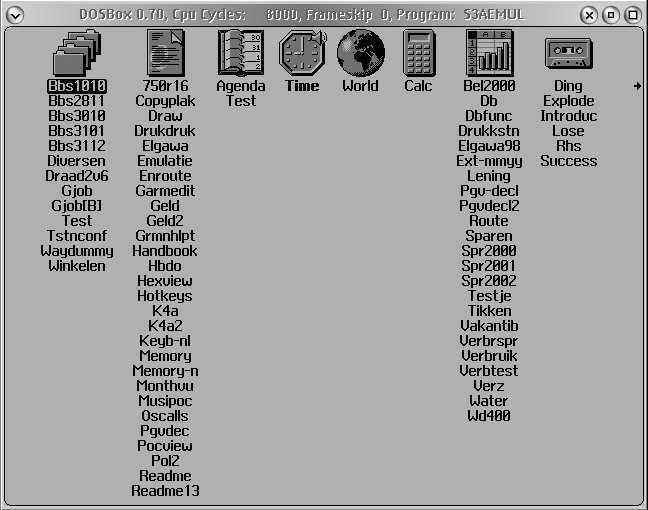
And than this... A modern PC from this year contains a different processor than the 80386. As long as the processor is X86 compatible everything should work as with the 80386, only a little faster. My Pentium is no problem and unfortunately aged. With this story everything is said what is known about the emulator, but if you have some more news, please let me know! |
 This page is published with eComStation® and WebWriter/2 v1.2
Revised on 18 March 2012 |